Ein OLED-Display am Raspberry
Dieser Post beschreibt die Installation eines SBC-OLED01 mit 128x64 Pixeln am Raspberry PI.
Die Verkabelung ist ganz einfach, dank i2C:
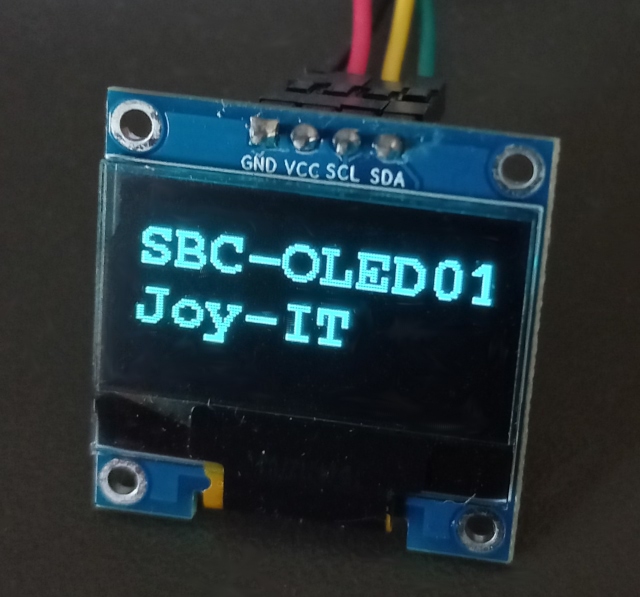
Die Software war schon aufwendiger, weil es anscheinend keine aktuelle Beschreibung gibt.
Installation der Software
Die Software-Installation ist nicht ganz einfach, deshalb habe ich sie hier dokumentiert.
# Prepare directory
mkdir oled
cd oled

# Create and activate virtual environment
python -m venv env
. env/bin/activate

# Install the required modules
python -m pip install setuptools
python -m pip install Adafruit_GPIO
python -m pip install Pillow
python -m pip install RPi.GPIO

# Install the library for the display
git clone https://github.com/adafruit/Adafruit_Python_SSD1306.git
cd Adafruit_Python_SSD1306/
python setup.py install
cd ..
Auf einem aktuellen OS läuft der Code aber noch nicht weil die Config-Daten geändert haben...
Am besten gehen Sie so vor: setzen Sie ein r'...' vor die Regular Expressions auf den Zeilen 70 und 94 von env/lib/python3.13/site-packages/Adafruit_GPIO/Platform.py. Das ist zwar nicht unbedingt nötig aber ich mag keine Warnungen von einem Script.
Im gleichen File gibt es die Funktion platform_detect. Die muss geflickt werden weil der Code sonst nicht läuft! Ich habe es ganz brutal mit einem return RASPBERRY_PI gelöst.
Simple Scripts zur Demonstration
Als erstes eine ganz einfache Textanzeige:
# I don't remember where this code came from. It
# looks like an example from Tony DiCola & James DeVito

import time
import Adafruit_GPIO.SPI as SPI
import Adafruit_SSD1306

from PIL import Image, ImageDraw, ImageFont

# Pin configuration
RST  = 24

# 128 x 64 OLED on hardware I2C
disp = Adafruit_SSD1306.SSD1306_128_64(rst=RST)

# Initialize library
disp.begin()

# Clear display.
disp.clear()
disp.display()

width  = disp.width
height = disp.height

# Create an image with 1-bit color
image = Image.new('1', (width, height))

# Create a canvas
draw = ImageDraw.Draw(image)

# Load the default font
font = ImageFont.load_default()

# Draw two lines of text on the canvas
x   = 40
top = 20
draw.text((x, top), 'SBC-OLED01', font=font, fill=255)
draw.text((x, top+20), 'Joy-IT', font=font, fill=255)

# Display image
disp.image(image)
disp.display()

# Sleep 100ms
time.sleep(.1)
Der Text ist zu klein, deshalb eine Version mit einem TrueType-Font.
# An extended version of the previous example

import time
import Adafruit_GPIO.SPI as SPI
import Adafruit_SSD1306

from PIL import Image, ImageDraw, ImageFont

# Pin configuration
RST  = 24

# 128 x 64 OLED on hardware I2C
disp = Adafruit_SSD1306.SSD1306_128_64(rst=RST)

# Initialize library
disp.begin()

# Clear display.
disp.clear()
disp.display()

width  = disp.width
height = disp.height

# Create an image with 1-bit color
image = Image.new('1', (width, height))

# Create a canvas
draw = ImageDraw.Draw(image)

# Load a TrueType-font
font = ImageFont.truetype( "/usr/share/fonts/truetype/freefont/FreeMonoBold.ttf", 22 )

# Draw two lines of text on the canvas
x   = 0
top = 5
draw.text((x, top), 'SBC-OLED01', font=font, fill=255)
draw.text((x, top+22), 'Joy-IT', font=font, fill=255)

# Display image
disp.image(image)
disp.display()

# Sleep 100ms
time.sleep(.1)
Der Text auf dem Display soll sich ändern, deshalb eine weitere Variante:
# Refresh the text on the display

import time
import Adafruit_GPIO.SPI as SPI
import Adafruit_SSD1306

from PIL import Image, ImageDraw, ImageFont

# Pin configuration
RST  = 24

# 128 x 64 OLED on hardware I2C
disp = Adafruit_SSD1306.SSD1306_128_64(rst=RST)

# Initialize library
disp.begin()

# Clear display.
disp.clear()
disp.display()

width  = disp.width
height = disp.height

# Create an image with 1-bit color
image = Image.new('1', (width, height))

# Create a canvas
draw = ImageDraw.Draw(image)

# Load a TrueType-font
font = ImageFont.truetype( "/usr/share/fonts/truetype/freefont/FreeMonoBold.ttf", 22 )

x   = 0
top = 5
for i in range(1,101,1):
    # Erase the canvas
    draw.rectangle( [0, 0, width-1, height-1], fill=0 )

    # Draw the number on the canvas
    draw.text((x, top), str(i), font=font, fill=255)

    # Display the image
    disp.image(image)
    disp.display()
    time.sleep(1)